
MacBook Won't Turn On? Try These 7 Fixes Before Visiting a Repair Shop

By Shrey Sharma, Founder & Lead Technician · December 2024
A dead MacBook is scary — but up to 40% of 'no power' cases we see have free fixes you can do at home in minutes. Here's our expert troubleshooting checklist.
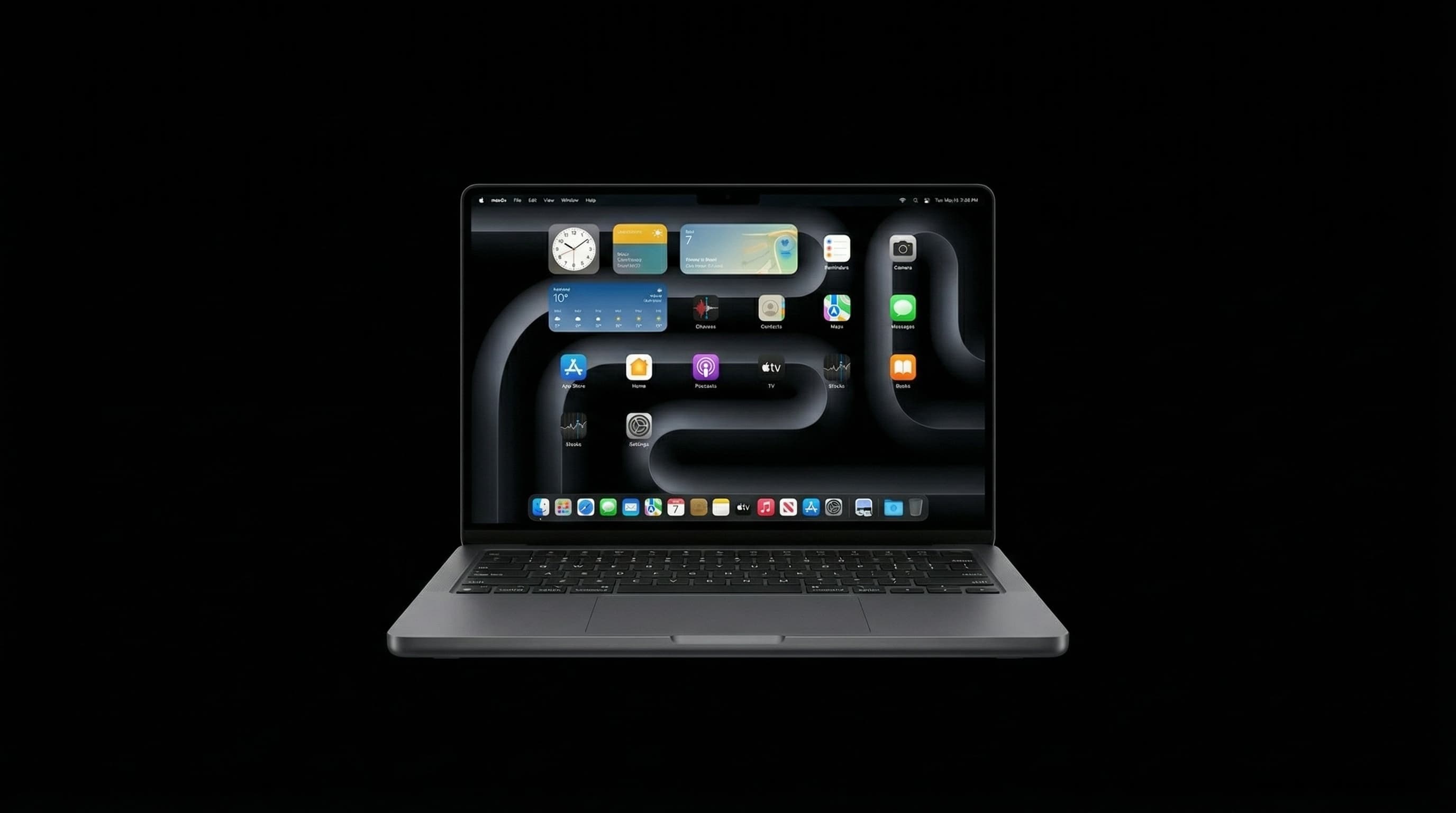
Your MacBook is completely unresponsive. No chime, no screen, no fan spin — nothing. Before you panic, know this: at Mac Repair Center Mumbai, roughly 40% of 'dead MacBook' cases we see are caused by software glitches or simple hardware states you can reset in minutes — for free. Work through this checklist before booking a repair.
Fix 1: Check Your Power Source
This sounds obvious, but it's the most commonly overlooked step. A faulty cable, a dead wall socket, or a loose MagSafe connection can mimic a completely dead MacBook.
- Try a different USB-C cable or MagSafe adapter if you have one
- Plug directly into a wall socket — skip the power strip or surge protector
- On USB-C MacBooks, try all ports, not just your usual one
- Look for the amber/green MagSafe indicator light — if it's not lighting up, the charger or port may be faulty
- Try charging for 15 minutes before attempting to power on
Fix 2: Force Restart
Sometimes macOS freezes so deeply that the screen appears black and the MacBook feels off. A force restart can break this state.
- 1Hold the Power button for 10 full seconds — the MacBook will shut off forcefully
- 2Release and wait 5 seconds
- 3Press Power once to restart
- 4If nothing happens, hold Power for 10 seconds again, then try pressing Power + D simultaneously (runs Apple Diagnostics)
Fix 3: Reset the SMC (System Management Controller)
The SMC controls low-level hardware functions including power management. A corrupted SMC state can prevent a MacBook from powering on entirely. This is one of the most effective fixes for 'no power' issues.
- MacBook with Apple Silicon (M1/M2/M3/M4): Simply shut down, wait 30 seconds, then press Power. Apple Silicon Macs reset SMC automatically.
- MacBook Pro/Air with T2 chip (2018–2020): Shut down → hold Shift + Control + Option (left side) + Power for 10 seconds → release all → press Power
- Older Intel MacBook (pre-2018) with non-removable battery: Shut down → hold Shift + Control + Option + Power for 10 seconds → release → press Power
Fix 4: Reset NVRAM / PRAM
NVRAM stores settings like display resolution, time zone, and startup disk selection. A bad NVRAM state can occasionally prevent proper boot.
- 1Shut down the MacBook
- 2Press Power, then immediately hold Command + Option + P + R
- 3Hold for about 20 seconds — you may hear the startup chime twice on older models
- 4Release and let the MacBook boot normally
- 5Note: Apple Silicon Macs reset NVRAM automatically — this step is for Intel models only
Fix 5: Check for Display Issues
Your MacBook might actually be on — you just can't see it. A failed backlight, loose display cable, or GPU issue can produce a perfectly black screen while the system is running.
- Listen for the startup chime or fan spin when you press Power
- Shine a flashlight at an angle onto the screen — look for a faint image (indicates backlight failure)
- Connect an external monitor via HDMI or USB-C to check if the GPU is working
- Try adjusting screen brightness using the keyboard shortcut (F1/F2)
If you can see a faint image with a flashlight, the problem is almost certainly the backlight fuse or backlight driver circuit — a common chip-level repair that costs a fraction of a display replacement.
Fix 6: Boot Into Safe Mode
If the MacBook shows any sign of life but won't complete startup, Safe Mode bypasses third-party extensions and performs a disk check automatically.
- Apple Silicon: Shut down → press and hold Power until you see 'Loading startup options' → select your disk → hold Shift → click 'Continue in Safe Mode'
- Intel: Shut down → press Power → immediately hold Shift until you see the login screen
- If Safe Mode works: the issue is a startup extension or login item — disable them one by one
Fix 7: Check for Physical Damage
Inspect the MacBook carefully before writing it off. Look for:
- Any liquid damage — swollen battery, corrosion near the charging port, moisture indicators on the bottom panel
- Bent or damaged USB-C ports that prevent proper charging contact
- Cracked or damaged MagSafe port (on older models)
- Swollen battery causing the trackpad to bulge upward
- Visible burn marks or damage near the vents
Do NOT attempt to charge a MacBook you suspect has liquid damage. Water and electricity cause spreading corrosion. Turn it off, disconnect power, and contact us immediately for data recovery and repair.
When to Bring It In
If you've worked through all 7 steps and the MacBook still won't respond, the issue is hardware-level — a failed power management IC, a short circuit on the logic board, a dead battery, a blown fuse, or corrupted T2 chip firmware. These require professional diagnosis and chip-level repair.
At Mac Repair Center Mumbai, every dead MacBook gets a free diagnosis. We'll identify the exact fault and give you a transparent quote — no obligation to proceed. Most no-power repairs are completed same day. Free doorstep pickup available across all Mumbai areas.
MacBook Still Dead After All 7 Fixes?
Don't guess — bring it in or book a free pickup across Mumbai. We diagnose for free, fix what others can't, and back every repair with a 90-day warranty.
Free pickup available across all Mumbai areas · Mon–Sat 10am–8pm
10+ years of chip-level Apple repair experience in Mumbai. Specialises in MacBook logic board micro-soldering, data recovery, and complex Apple hardware faults. Every repair backed by a 90-day warranty.
Related Services & Repairs
More from the Blog
MacBook Not Turning On in Mumbai? Same-Day Fix for 90% Less Than Apple
MacBook completely dead in Mumbai? Mac Repair Center diagnoses no-power faults at component level — SMC failure, PPBUS_G3H shorts, liquid damage — same day, data preserved. Call 7700044192.
MacBook Liquid Damage Repair Mumbai — Not Turning On? Fix It for 90% Less Than Apple
MacBook stopped working after a spill in Mumbai? Component-level logic board diagnosis — PPBUS_G3H shorts, charging IC failure, SMC corrosion — resolved same day with data preserved. Call 7700044192.
Logic Board Repair vs Replacement: Which Is Right for You?
Apple will quote you ₹40,000+ for a logic board replacement. Our chip-level repair often costs a fraction of that. Here's when each makes sense.
Apple Device Problem?
Get It Fixed Today — Free Diagnosis.
Mumbai's chip-level Apple repair specialists. Same-day repair · 90-day warranty · 100% data privacy. Don't settle for a slow fix or a replacement you don't need.
Open Mon–Sat · 10:00 AM – 8:00 PM · Mumbai