
iPhone Face ID Not Working? Here Are All the Causes and Fixes

By Shrey Sharma, Founder & Lead Technician · April 2025
Face ID stopped recognising you? Or completely stopped working after a drop or repair? This complete guide covers every cause and what can — and can't — be fixed.
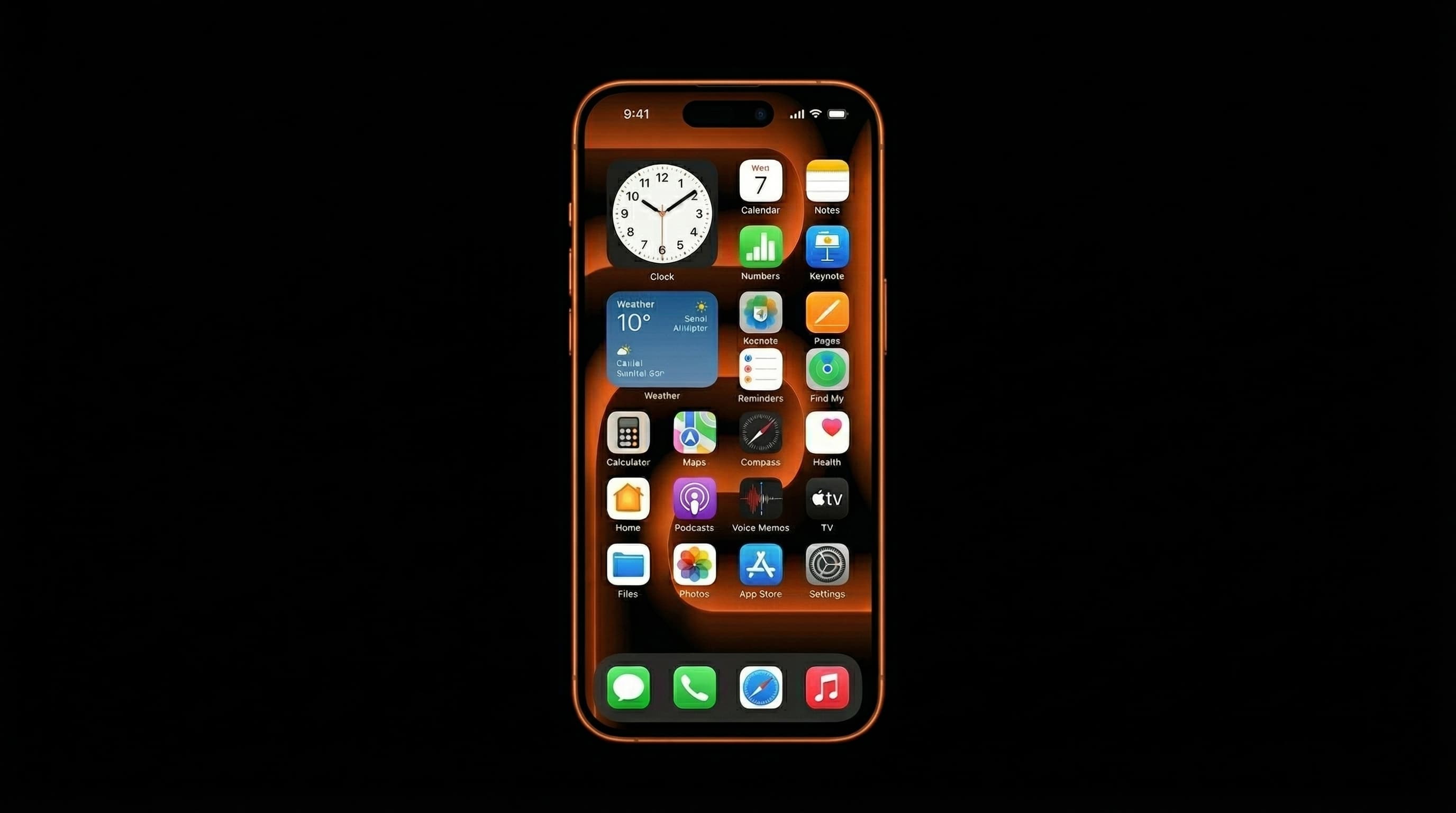
Face ID failure is one of the most frustrating iPhone problems — especially for people who use it dozens of times a day. The causes range from a simple software glitch to a physically damaged TrueDepth camera system. This guide walks through every scenario.
Fix 1: Reset Face ID
Go to Settings > Face ID & Passcode > Reset Face ID. Then set it up again. This resolves many cases where Face ID stopped recognising after iOS updates or after significant changes in appearance (new glasses, beard, etc.).
Fix 2: Clean the TrueDepth Camera Area
The small sensors above the iPhone screen — the dot projector and infrared camera — can be obstructed by case edges, screen protectors, or smudges. Ensure your screen protector doesn't cover the top sensor array. Clean the area gently with a microfibre cloth.
Fix 3: Restart iPhone
A simple restart resolves intermittent Face ID failures caused by iOS processes not initialising correctly. Force restart (Volume Up → Volume Down → hold Side button) if a normal restart doesn't work.
Face ID Failed After Screen Replacement
If Face ID stopped working after a screen replacement by another shop, the TrueDepth camera module was likely not properly transferred. This is one of the most common Face ID failure causes we see in Mumbai — improper screen repairs.
The Face ID system requires the original TrueDepth camera module (which contains Face ID authentication data) to be transferred to the new screen assembly. Repairers who cut corners skip this step or damage the flex cable during transfer. We can often fix this — but if the Face ID sensor itself (the dot projector or infrared camera) is physically damaged, Face ID cannot be restored by any independent repairer.
Face ID Failed After Drop
A drop can damage the TrueDepth camera flex cable, dislodge the flood illuminator, or crack the dot projector — all of which disable Face ID. We diagnose which component is damaged and repair where possible. Hardware Face ID restoration requires the original sensor components.
The Hard Truth About Face ID
Apple's security architecture pairs Face ID hardware to the logic board. Third-party Face ID sensor replacements cannot be paired and do not restore Face ID functionality. If the original sensors are physically destroyed, Face ID cannot be restored by any independent repairer — including us. We will always tell you honestly if this is the case before you spend money.
Face ID Diagnosis in Mumbai
Free Face ID diagnosis at Mac Repair Center, Kandivali West. We'll tell you exactly what's wrong and what can be fixed. Call +91 77000 44192.
Free pickup available across all Mumbai areas · Mon–Sat 10am–8pm
10+ years of chip-level Apple repair experience in Mumbai. Specialises in MacBook logic board micro-soldering, data recovery, and complex Apple hardware faults. Every repair backed by a 90-day warranty.
Related Services & Repairs
Related service:
iPhone Repair Mumbai — View Full Service Details →More from the Blog
iPhone Not Charging? 7 Fixes to Try Before Visiting a Repair Shop
iPhone not charging is often a software glitch or a dirty port — not a hardware failure. Try these 7 fixes before spending money on repairs.
iPhone Component-Level Repair: Which Faults Can Be Fixed at Chip Level (and Which Can't)
Most iPhone faults are diagnosed as 'needs board replacement' by shops without micro-soldering capability. Many of those faults are actually repairable at component level — at a fraction of the cost. Here's what's actually possible.
iPhone Water Damage in Mumbai Monsoon: Complete Recovery Guide (2026)
IP68 doesn't mean waterproof. Mumbai's monsoon catches iPhone owners off guard every year — heavy rain, flooded streets, and soaked bags. Here's exactly what to do if your iPhone gets wet, and what the IP rating actually means.
Apple Device Problem?
Get It Fixed Today — Free Diagnosis.
Mumbai's chip-level Apple repair specialists. Same-day repair · 90-day warranty · 100% data privacy. Don't settle for a slow fix or a replacement you don't need.
Open Mon–Sat · 10:00 AM – 8:00 PM · Mumbai