
🐌 MacBook Running Slow? Here's What's Actually Wrong

By Shrey Sharma, Founder & Lead Technician · Updated April 2026
A slow MacBook doesn't always mean it's time for a new one. In most cases, there's a specific, fixable reason your Mac has slowed down. Here's how to diagnose it and get your MacBook back to full speed.
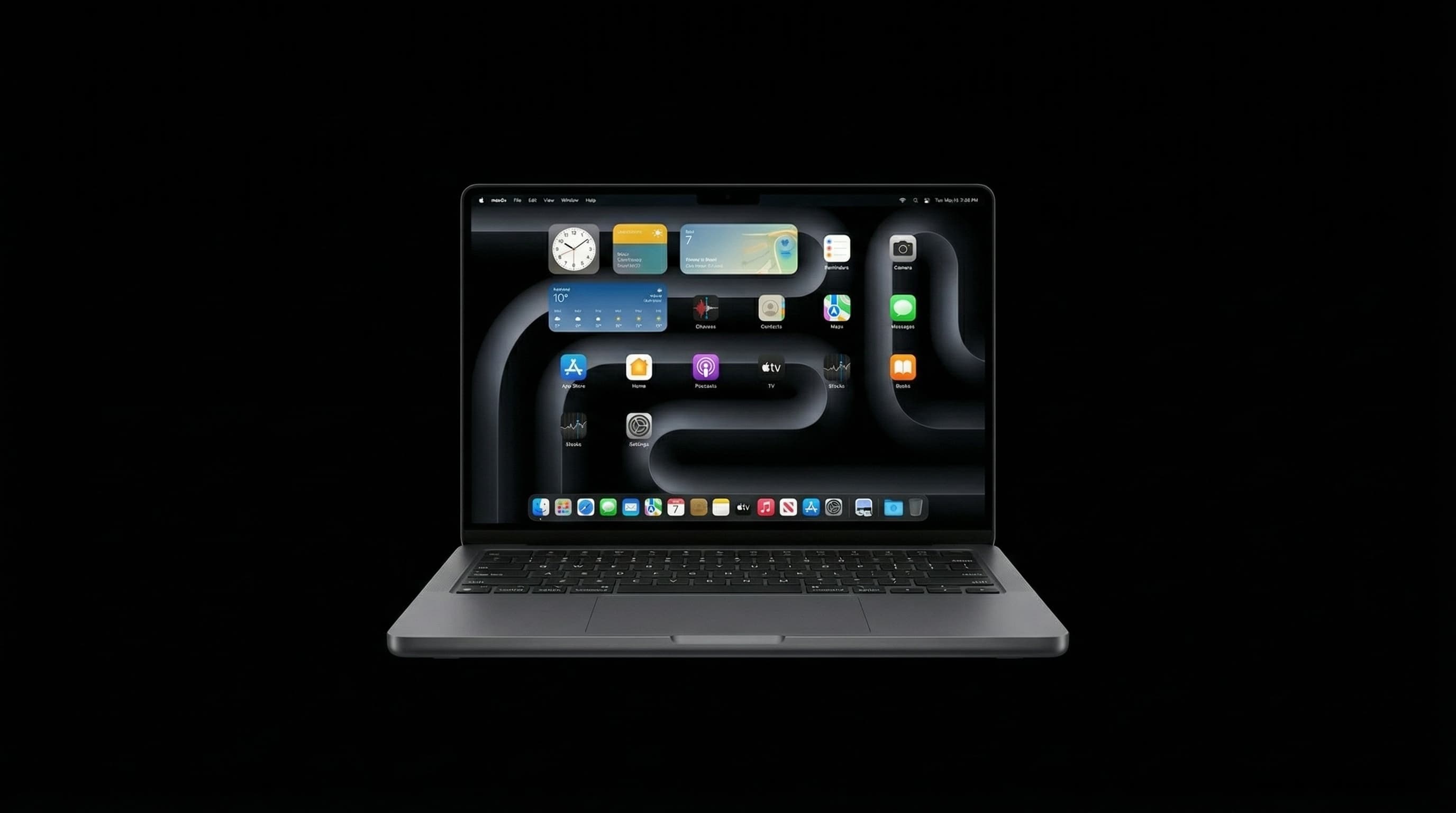
A slow MacBook is one of the most common complaints we hear. Customers come in assuming they need a new Mac — but in the majority of cases, a targeted fix gets them back to full speed without spending anything near the cost of a new device. Here's how to diagnose exactly what's making your MacBook slow and what to do about it. Need help now? Call +91 77000 44192 or WhatsApp for a free diagnostic check.
🔍 Why is My MacBook So Slow? — The Main Causes
- Storage almost full — macOS needs at least 10–15% free space to function properly
- Too many apps launching at startup — slows boot time and keeps RAM occupied
- Runaway background process — one app using 80–100% CPU constantly
- Insufficient RAM for your workload — especially on 8GB models
- Failing or nearly-full SSD — read/write speeds drop significantly when near capacity
- Outdated macOS — older versions miss performance improvements
- Overheating — thermal throttling slows the CPU to protect the hardware
- Malware or adware — rare on macOS, but possible
Fix 1: Free Up Storage Space
- 1Click the Apple menu → About This Mac → More Info → Storage
- 2Click 'Manage' to see what's taking up space
- 3Use 'Optimise Storage' to move old files to iCloud
- 4Empty the Trash (it doesn't empty automatically)
- 5Delete unused apps from the Applications folder
- 6Move large video files and photos to an external drive
- 7Target: keep at least 15–20GB free on your startup drive
Downloads folder is often the biggest hidden space waster. Open Finder → Downloads and sort by size. Most people find gigabytes of forgotten files they can safely delete.
Fix 2: Remove Unnecessary Startup Items
- 1Go to System Settings → General → Login Items & Extensions
- 2Review every app listed under 'Open at Login'
- 3Remove anything you don't need immediately on startup (Spotify, Teams, Dropbox, etc.)
- 4Restart your MacBook and notice the difference in boot speed
Fix 3: Kill CPU and Memory Hogs
- 1Open Activity Monitor (Cmd + Space → Activity Monitor)
- 2Click the CPU tab — sort by '% CPU' descending
- 3Look for any process above 50% CPU when you're not doing heavy work
- 4Click the Memory tab — sort by 'Memory' descending
- 5If you see 'Memory Pressure' in red at the bottom, you're running out of RAM
- 6Force quit apps using excessive resources that you don't need open
Fix 4: Reset NVRAM and SMC
NVRAM stores display resolution, startup disk settings, and other parameters. A corrupt NVRAM can cause sluggish performance. To reset:
- 1Shut down your MacBook completely
- 2Press Power, then immediately hold Cmd + Option + P + R
- 3Hold for 20 seconds until you hear the startup sound twice (older models) or the Apple logo appears and disappears twice
- 4Release and allow the Mac to boot normally
M1/M2/M3 MacBooks don't have traditional NVRAM or SMC. Simply shut down fully, wait 30 seconds, and restart — the system resets itself automatically.
Fix 5: Upgrade Your SSD Storage
On older Intel MacBooks (pre-2016) that still have upgradeable storage, an SSD upgrade is the single most impactful performance improvement you can make. If your MacBook has a spinning hard disk (HDD), upgrading to an SSD will make it feel like a brand new machine.
- SSD upgrade cost at Mac Repair Center: ₹5,000 – ₹15,000 depending on capacity
- HDD → SSD upgrade: boot time drops from 60+ seconds to under 10 seconds
- Note: MacBooks from 2016 onwards have soldered SSDs that cannot be upgraded on most models
- For M-series MacBooks: the SSD is built into the chip and cannot be upgraded — storage management is your only option
🏪 When to Bring It to a Professional
- Storage is failing — S.M.A.R.T. errors detected on the drive
- RAM is faulty — random crashes and slowdowns that persist after all software fixes
- Overheating is causing constant thermal throttling (see our overheating guide)
- MacBook is so slow it takes 5+ minutes to boot even with a clean install
- You need an SSD upgrade for an eligible older model
❓ Frequently Asked Questions
Sometimes — particularly if software corruption or malware is the cause. But if hardware (full SSD, failing drive, or insufficient RAM) is the issue, reinstalling macOS won't help.
If the rest of the hardware is fine, an SSD upgrade and RAM check can give a 5-year-old MacBook several more productive years at a fraction of replacement cost.
For basic use: 8GB is fine. For creative work, multiple browser tabs, or video calls: 16GB is recommended. For video editing or development: 32GB+ is ideal.
Speed Up Your MacBook at Mac Repair Center Mumbai
Free diagnosis, SSD upgrades, cleaning services — we'll find exactly what's making your MacBook slow and fix it the same day. Call +91 77000 44192 or WhatsApp. Free pickup & drop across Mumbai, Navi Mumbai & Thane.
Free pickup available across all Mumbai areas · Mon–Sat 10am–8pm
10+ years of chip-level Apple repair experience in Mumbai. Specialises in MacBook logic board micro-soldering, data recovery, and complex Apple hardware faults. Every repair backed by a 90-day warranty.
Related service:
MacBook Repair Services — View Full Service Details →More from the Blog
MacBook Overheating? 9 Causes and How to Fix Each One
A hot MacBook is an unhappy MacBook — and a fast-degrading one. Here are 9 overheating causes and exactly how to fix them, from free software tweaks to hardware solutions.
How to Speed Up a Slow MacBook Without Spending a Single Rupee
Before you blame your hardware, try these proven free fixes — most take under 5 minutes and solve the majority of 'my MacBook has gotten so slow' complaints we hear every week.
MacBook Battery Replacement Cost in Mumbai — All Models (2026 Guide)
MacBook battery draining fast? Not holding charge? Here's the complete 2026 guide to MacBook battery replacement costs in Mumbai — every model from 2012 MacBook to the latest M3 and M4, with Apple Authorized vs independent pricing.
Apple Device Problem?
Get It Fixed Today — Free Diagnosis.
Mumbai's chip-level Apple repair specialists. Same-day repair · 90-day warranty · 100% data privacy. Don't settle for a slow fix or a replacement you don't need.
Open Mon–Sat · 10:00 AM – 8:00 PM · Mumbai