
How to Factory Reset a MacBook Before Selling It (macOS Sonoma, Ventura & Older)

By Shrey Sharma, Founder & Lead Technician · May 2026
A wrong reset order can leave your MacBook locked to your Apple ID — or leave your personal data recoverable by the next owner. Here's the correct, current process for every macOS version.
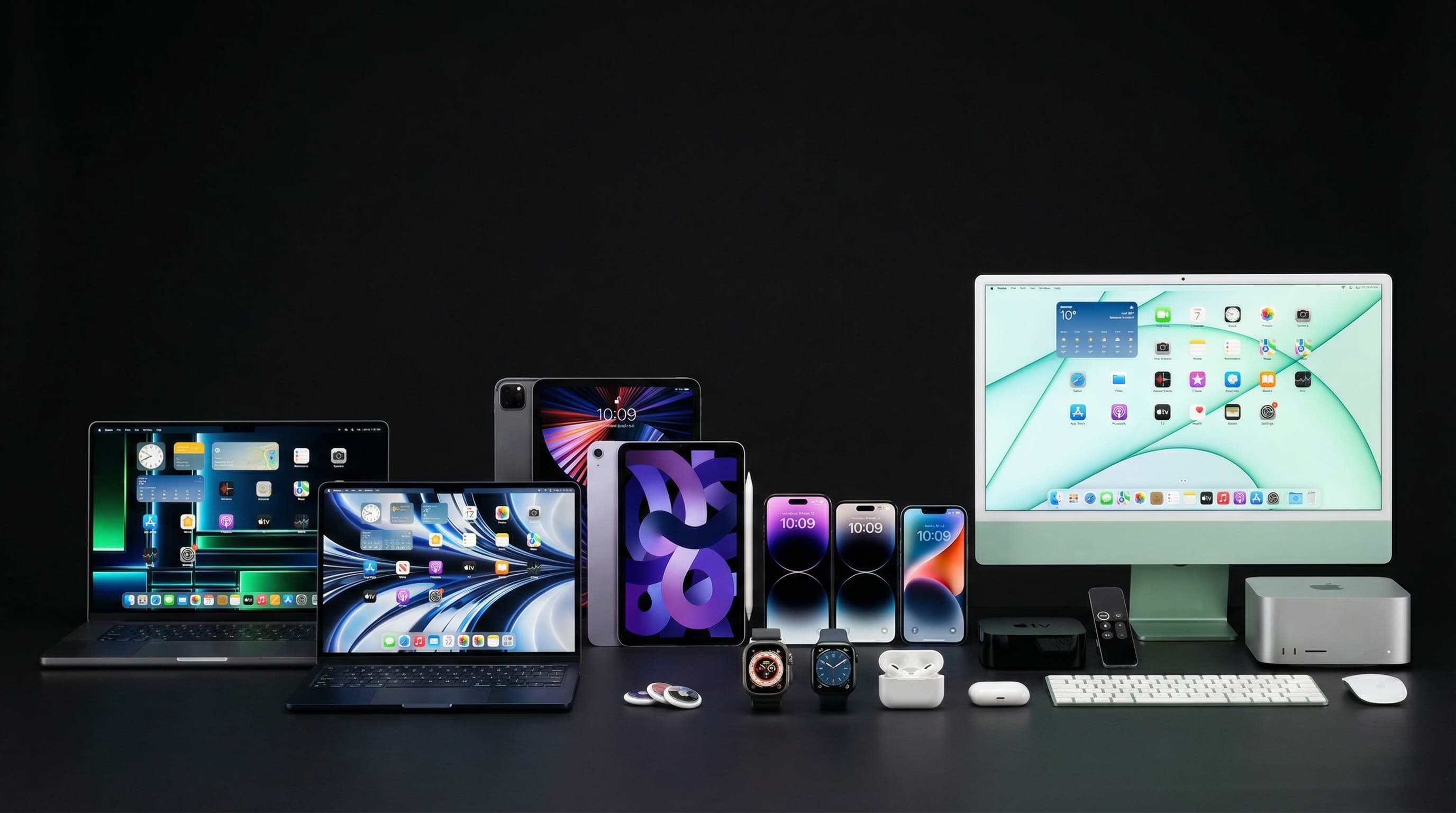
Selling your MacBook? Apple changed the reset process significantly with Apple Silicon and macOS Ventura/Sonoma — the old 'reinstall macOS' routine many people remember no longer applies the same way. Get the order wrong, and you risk leaving your iCloud account active on the device, or — worse — accidentally Activation-Locking it for the buyer. Here's the current, correct process.
Before You Start: 3 Things You Must Do First
- 1Back up everything — Time Machine, iCloud Drive, or a manual copy to an external drive. Once erased, on-device data recovery becomes far more difficult
- 2Sign out of iMessage and FaceTime — open Messages > Settings > iMessage, and FaceTime > Settings, and sign out of your Apple ID in both
- 3Deauthorize the Mac from your Apple ID media — open Music or TV app, go to Account > Authorizations > Deauthorize This Computer (relevant if you've purchased music, movies, or apps)
For Apple Silicon Macs (M1/M2/M3) on macOS Ventura or Sonoma
- 1Click the Apple menu and choose System Settings
- 2Click your name at the top, scroll down, and click 'Sign Out' — this signs out of iCloud and removes Find My from this Mac. Don't skip this step
- 3Click the Apple menu again and go to System Settings > General > Transfer or Reset > Erase All Content and Settings
- 4Follow the on-screen prompts — enter your administrator password and Apple ID password when asked
- 5The Mac will erase itself and restart into Setup Assistant — ready for the new owner to set up as if brand new
For Intel Macs on Older macOS (Monterey, Big Sur, Catalina)
- 1Sign out of iCloud first — System Preferences > Apple ID > Overview > Sign Out (the step most people miss, and the one that prevents Activation Lock issues)
- 2Restart and immediately hold Command (⌘) + R to enter macOS Recovery
- 3From the Recovery menu, open Disk Utility, select your main disk (usually 'Macintosh HD'), and click Erase
- 4Quit Disk Utility, choose 'Reinstall macOS,' and follow the prompts to install a fresh copy
- 5Once done, the Mac boots to Setup Assistant — leave it there for the new owner; do NOT create a new user account
| Mac Type | Reset Method | Approx. Time |
|---|---|---|
| Apple Silicon (M1/M2/M3) — Ventura/Sonoma | System Settings > Erase All Content and Settings (one-click, automated) | 15–30 minutes |
| Intel Mac — macOS Monterey or newer | Sign out of iCloud, then Erase All Content and Settings (if available) or Recovery Mode reinstall | 30–60 minutes |
| Intel Mac — Big Sur, Catalina, or older | Sign out of iCloud, boot into Recovery Mode (⌘+R), erase disk, reinstall macOS | 45–90 minutes (depends on download speed) |
If you erase the Mac WITHOUT signing out of iCloud first, the device can become Activation Locked to your Apple ID — meaning the buyer will be stuck on a setup screen demanding YOUR Apple ID and password. You'll then need to remotely remove the device via icloud.com/find using 'Erase Mac' and 'Remove from Account' — an extra step that's easy to avoid by simply signing out first.
Remove any Bluetooth pairings (especially your Apple Watch unlock pairing), check Settings > General > AirDrop & Handoff, and physically wipe down the device. If you're including the original charger and box, double-check there's no personal info written inside (some people write their name or number on the box).
Selling or Buying a Used MacBook? Get a Free Pre-Sale Check
We'll verify the reset was done correctly, run a full hardware diagnostic, and give you an honest fair-market valuation — whether you're the seller or the buyer.
Free pickup available across all Mumbai areas · Mon–Sat 10am–8pm
10+ years of chip-level Apple repair experience in Mumbai. Specialises in MacBook logic board micro-soldering, data recovery, and complex Apple hardware faults. Every repair backed by a 90-day warranty.
Related Services & Repairs
Related service:
Used MacBook Mumbai — View Full Service Details →More from the Blog
How to Speed Up a Slow MacBook Without Spending a Single Rupee
Before you blame your hardware, try these proven free fixes — most take under 5 minutes and solve the majority of 'my MacBook has gotten so slow' complaints we hear every week.
How to Remove Your Apple ID from an iPhone Before Selling It (Without Losing Your Data)
Forgetting to remove your Apple ID is the #1 reason sellers get angry messages from buyers a week later. Here's the correct order of steps — so your data stays safe and the new owner can actually use the phone.
How to Check if Your iPhone or MacBook Has Genuine Parts (Repair History Check)
Buying second-hand or just got something replaced? Apple's devices can now tell you, in plain language, whether a part is genuine — here's exactly where to look on iPhone and Mac.
Apple Device Problem?
Get It Fixed Today — Free Diagnosis.
Mumbai's chip-level Apple repair specialists. Same-day repair · 90-day warranty · 100% data privacy. Don't settle for a slow fix or a replacement you don't need.
Open Mon–Sat · 10:00 AM – 8:00 PM · Mumbai